Install Trade on AWS EC2
From creating the server to opening Trade, step by step on AWS EC2, all in your browser with no key pair.
Follow along: everything happens in your browser, clicking through and copying and pasting one command. No technical skills needed, and the installation itself takes a minute or two.
Before you start
An AWS account. You can change the AWS console's language with the gear (Settings) at the top right.
Cost: a t3.small (2 vCPU, 2 GB), which meets the minimum requirements, is about 25 USD per month on demand, including a 20 GB disk and a public IPv4 address (2026-10 official price; your bill is final). ZML Trade itself is free.
Traffic: Trade mostly receives market data, and incoming traffic is free. The first 100 GB of outgoing traffic each month is free; beyond that you pay per GB.
Create the server
Sign in to the AWS console and choose Asia Pacific (Tokyo) as the region at the top right. Type
EC2into the search box at the top to open it, and choose Launch instance.Give it any Name, for example
zml-trade. Under Application and OS Images, choose Ubuntu; keep the default version below it (Ubuntu 24.04 or a newer LTS version both work) and keep the architecture at 64-bit (x86).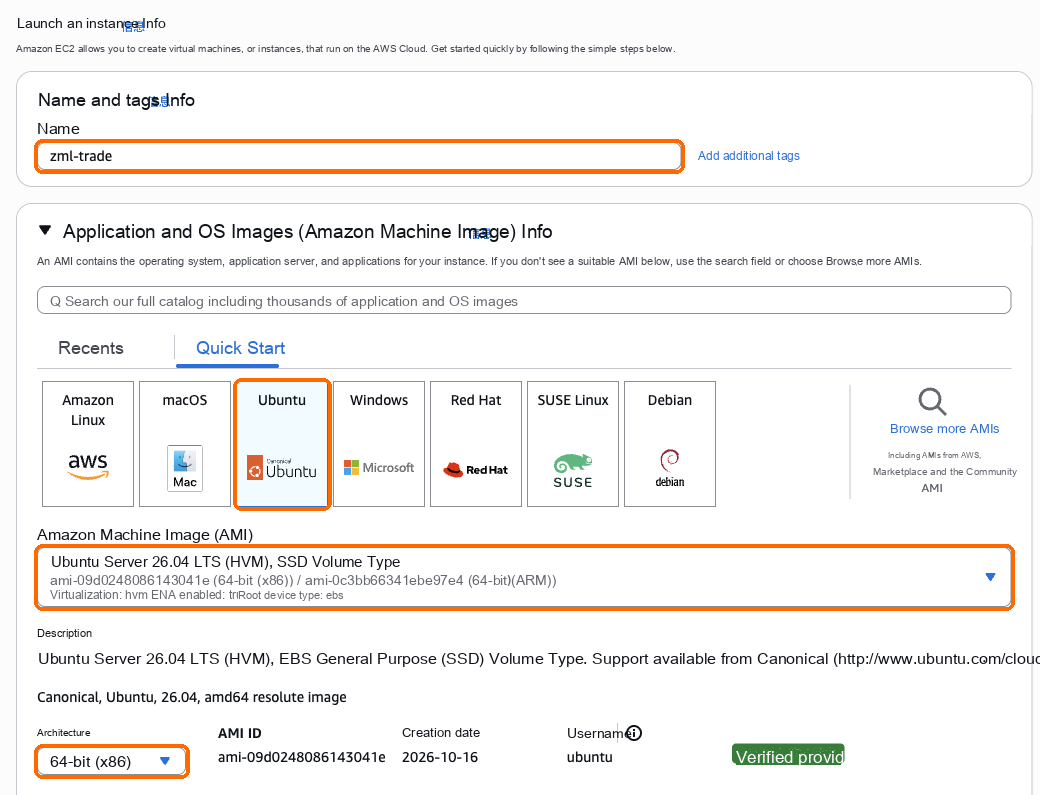
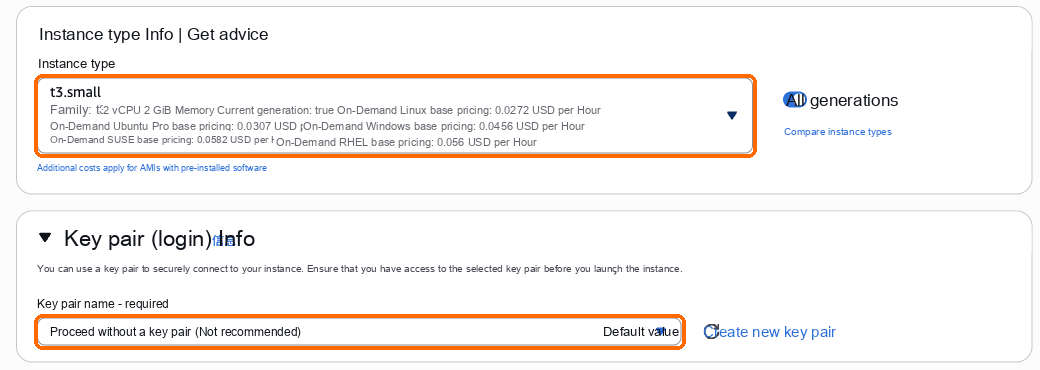
For Instance type, choose t3.small (2 vCPU, 2 GB memory). For Key pair, choose Proceed without a key pair and ignore the "not recommended" note: you'll log in directly from the browser and won't need a key.
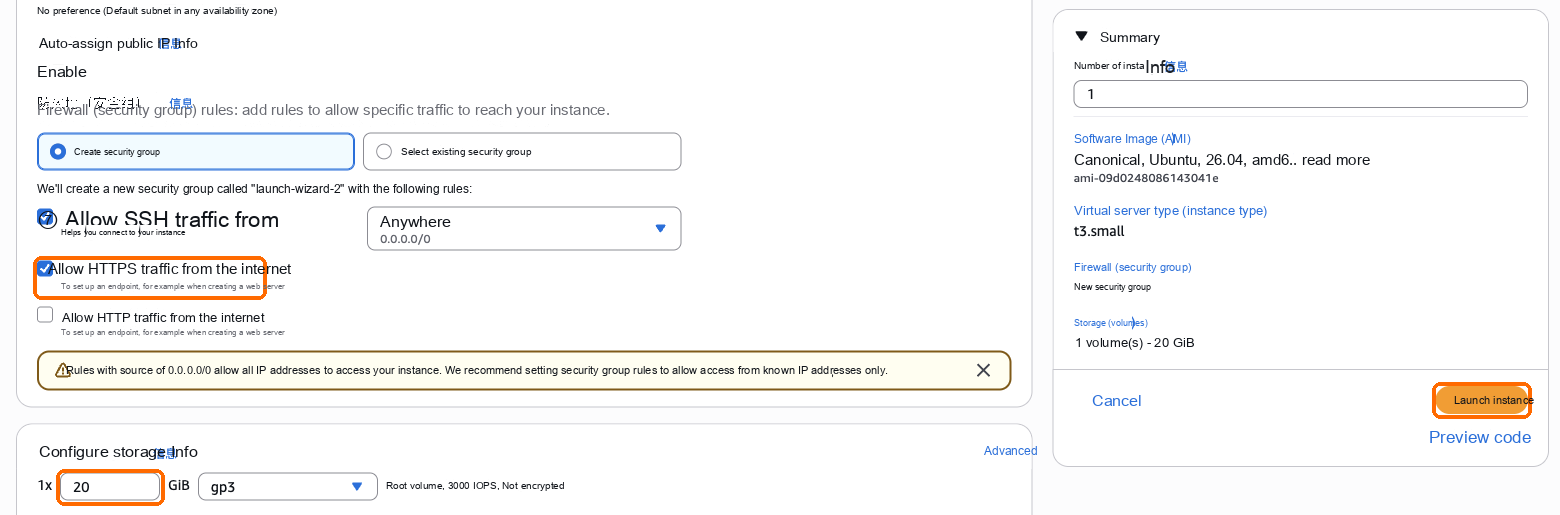
Under Network settings, tick Allow HTTPS traffic from the internet. Keep Allow SSH traffic from ticked above it, because the browser login uses it; ignore the yellow warning below.
Under Configure storage, change 8 to 20 (GB): the default 8 GB isn't enough for Trade.
Choose Launch instance on the right. The server is ready in a minute or two.
Choose Asia Pacific (Tokyo): exchanges may reject API access from servers in other regions. Don't choose a Graviton (ARM) instance type such as t4g: Trade needs x86_64.
Fix the public IP (before installing)
When you Stop and then Start an EC2 server in the console, it gets a new public IP, and the access address and your exchange IP allowlists stop working; upgrading the server later also means stopping it first. So before installing, attach an elastic IP, which never changes:
On the left of EC2, under Network & Security, choose Elastic IPs, then Allocate Elastic IP address at the top right. Keep the defaults and choose Allocate.
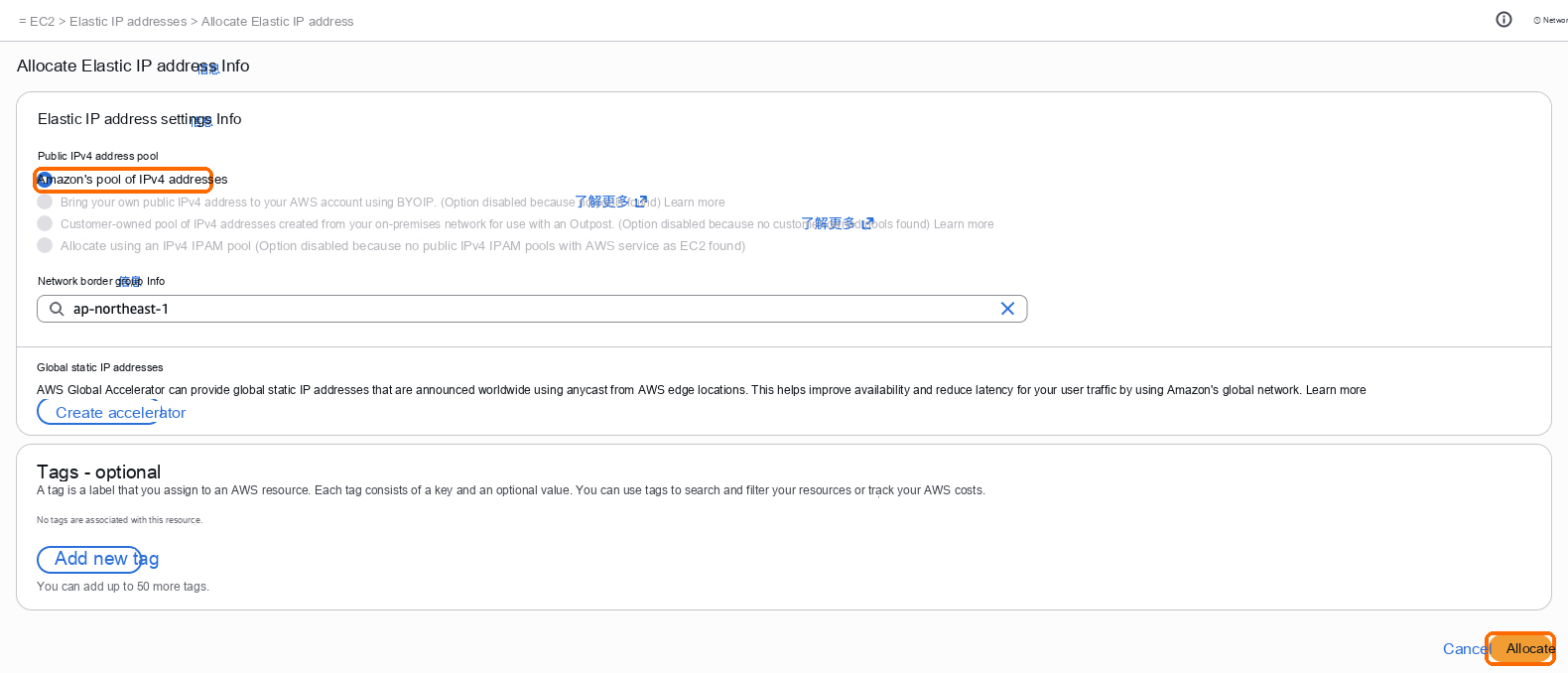
When the success message appears at the top, choose Associate this Elastic IP address in it.

Keep the resource type at Instance, pick this server under Instance, and choose Associate. The server's public IP is now this elastic IP.
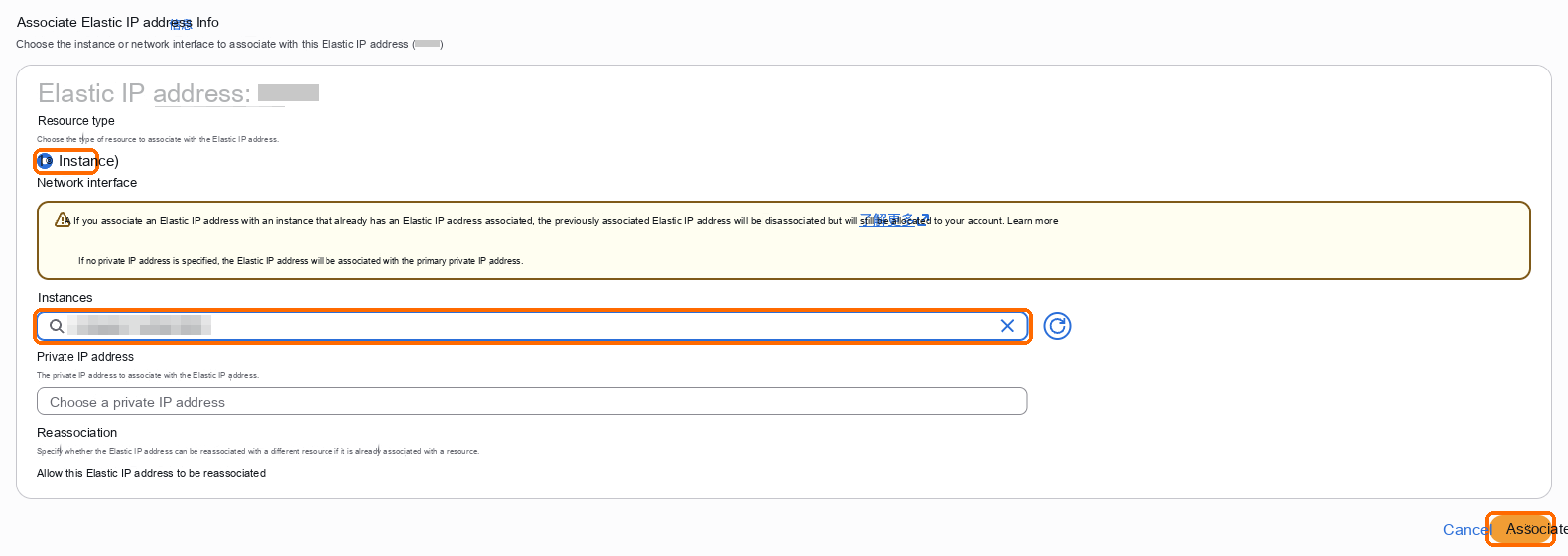
While it's associated with a running server, an elastic IP costs the same as the default public IP. If you already installed Trade before attaching it, that's fine: run the install command again, and Trade switches to a certificate for the new IP and prints the new link.
Log in to the server
Open the EC2 Instances list, select the new server, and choose Connect at the top.
On the Connect to instance page, under the browser tab, the first card, EC2 Instance Connect, is already selected. Keep the username
ubuntuand choose Connect at the bottom right. You don't need to act on the yellow note that port 22 is open to all IPv4 addresses.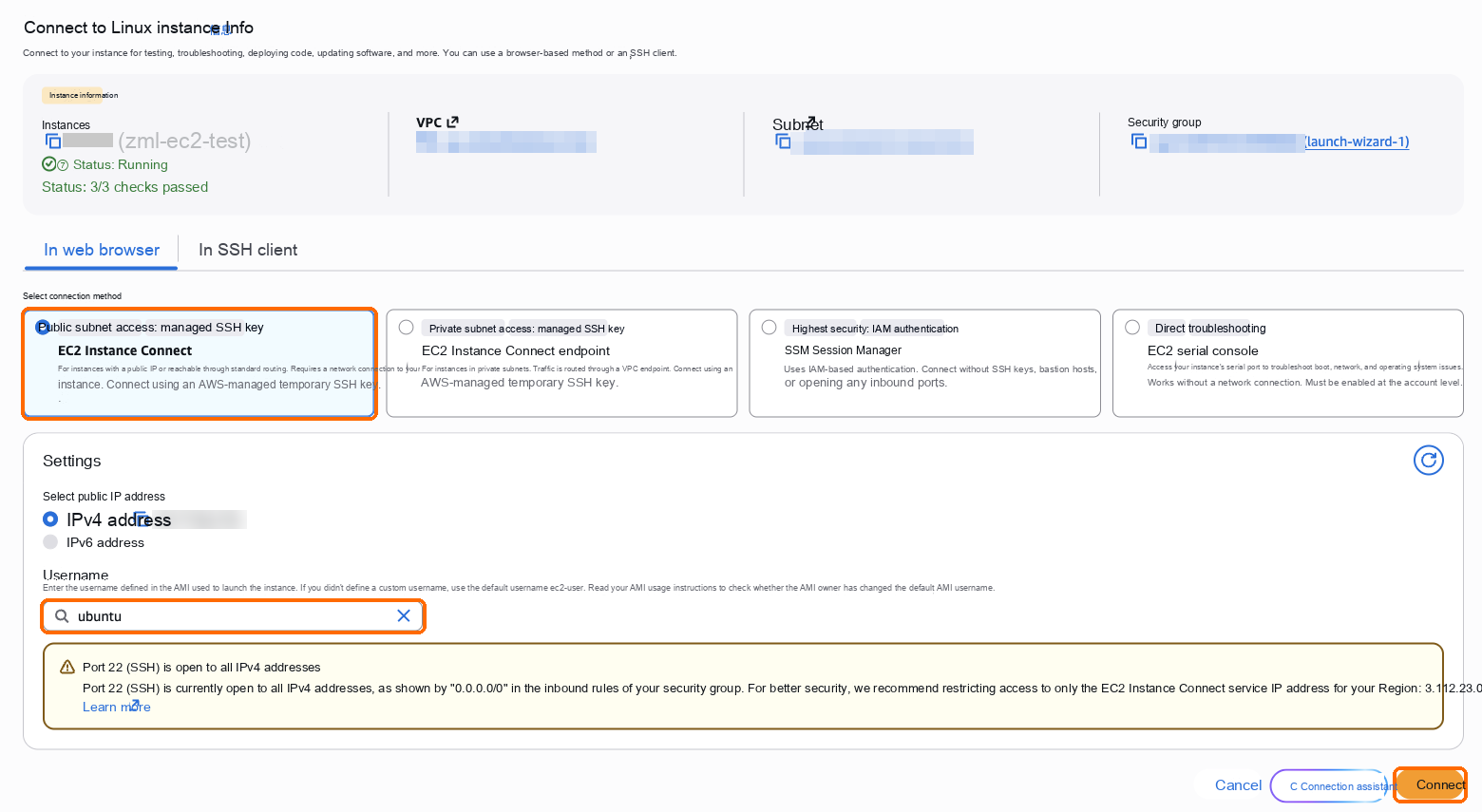
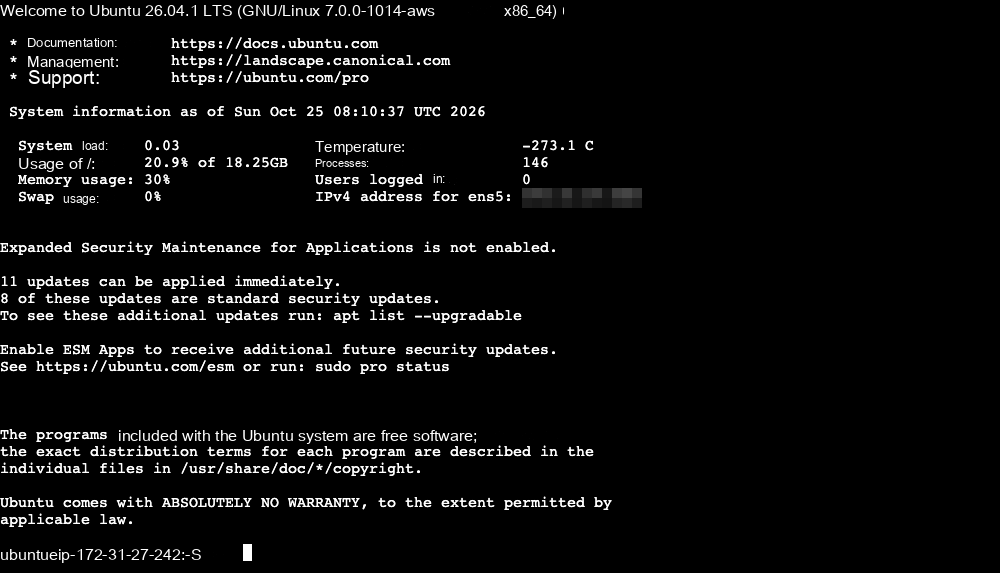
A command line window opens in your browser. The block of English text in the window is the system welcome message. Ignore anything about upgrading the system or updating software, and paste the install command below.
Run the install command
Copy this command (the Trade install page on our website has a "Copy install command" button):
curl -fsSL --compressed https://api.zmarketlab.com/install.sh -o install.sh && sudo bash install.shRight-click in the command line and choose Paste, or press Ctrl+V (⌘V on Mac), then press Enter. If the browser asks whether the page may read the clipboard, choose Allow.
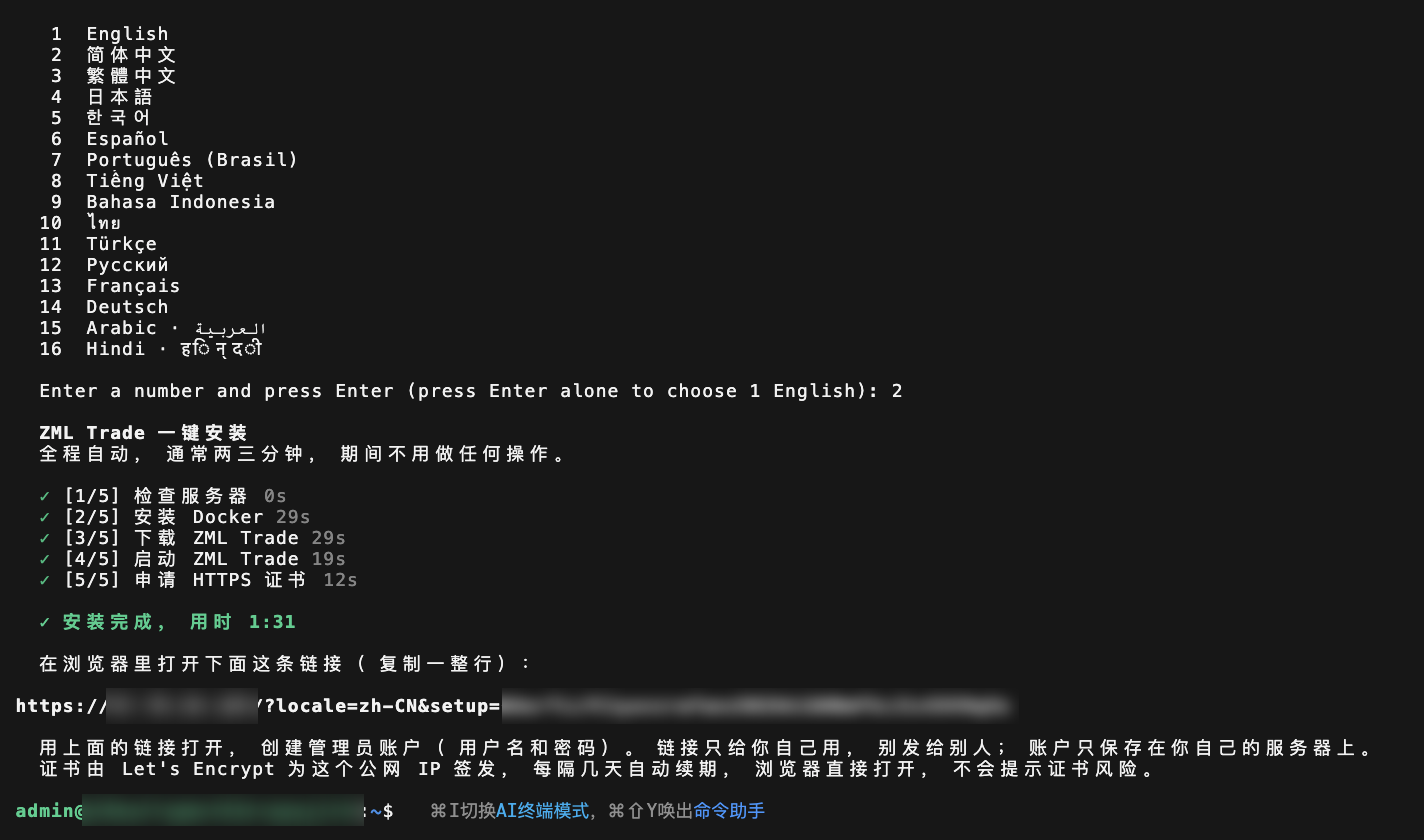
The screen lists 16 languages. Enter the number in front of the one you want and press Enter. The installer and Trade's web pages then use that language.
The rest is automatic and asks nothing more: check the server, install Docker, download ZML Trade, start it, and request an HTTPS certificate. The five steps are checked off one by one. The symbol in front of the current step keeps spinning and its seconds keep counting, so you can tell it is working.
When you see "Installation complete in …", it is installed. It usually takes a minute or two.
You don't need to switch users after logging in as ubuntu: the sudo in the command gives the installer the permissions it needs. If Trade can't be installed (for example, not enough disk space, or another program is using port 443), the installer says why and stops. Fix it as described, then run the same command again; steps already done are skipped.
Open Trade and create the admin account
Below "Installation complete", the screen says "Open the link below in your browser (copy the whole line)", and the next line on its own is your Trade address. Drag with the mouse from
httpsto the end of the address to select it, right-click and choose Copy, then paste it into your browser's address bar. Ctrl+C in the command line doesn't copy. If the address is long and wraps onto two lines, select both lines.The page shows "Set up the administrator account". Enter a username and password, accept the terms, and choose "Create and continue" to enter Trade.
The link carries a one-time code for creating the admin account. Keep it to yourself and don't share it. The account is stored only on your own server, so keep the password safe. If you forget it, run curl -fsSL --compressed https://api.zmarketlab.com/install.sh -o install.sh && sudo bash install.sh --reset-admin on the server to set a new one.
If you've lost the link, open the command line again as in "Log in to the server" above, paste this command and press Enter to print the link again.
curl -fsSL --compressed https://api.zmarketlab.com/install.sh -o install.sh && sudo bash install.sh --setup-linkAfter installation
Connect an exchange: add your exchange API keys. For the key's IP allowlist, enter the egress IP listed in Trade, which is this server's public IP.
Pair with Z Market Lab: opportunities you pick in Z Market Lab can then be handed to this Trade in one click.
Use several public IPs: when you run many combos, add more public IPs to the server; Trade finds them by itself and spreads requests.
Troubleshooting
| What you see | What to do |
|---|---|
| The installer says there isn't enough disk space | Storage wasn't changed to 20 GB when you created the server. Under Volumes in EC2, change this server's volume to 20 GB, reboot the server under Instances, then run the same command again |
| The installer stops and gives a reason | Fix what it says, then run the same command again. For how to handle each message, see Installation failed |
| The browser can't open the link | Make sure the instance's security group has a rule that allows inbound TCP 443. See The browser can’t open Trade |
| The browser says the connection isn't private | Port 443 most likely wasn't open in the security group during installation, so no trusted certificate was issued. After opening it, run curl -fsSL --compressed https://api.zmarketlab.com/install.sh -o install.sh && sudo bash install.sh --enable-ip-cert in the command line to request one again |
Upgrade the server later
To move to a bigger machine when you run more combos:
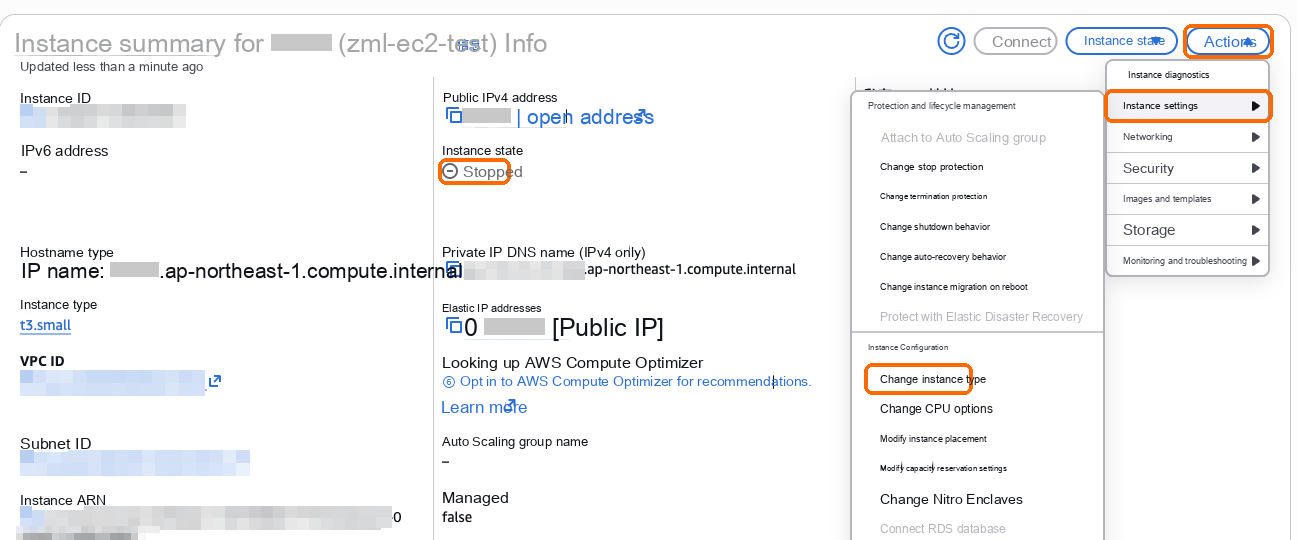
Select the server under Instances, choose Instance state → Stop instance, and wait until it shows Stopped.
Choose Actions → Instance settings → Change instance type.
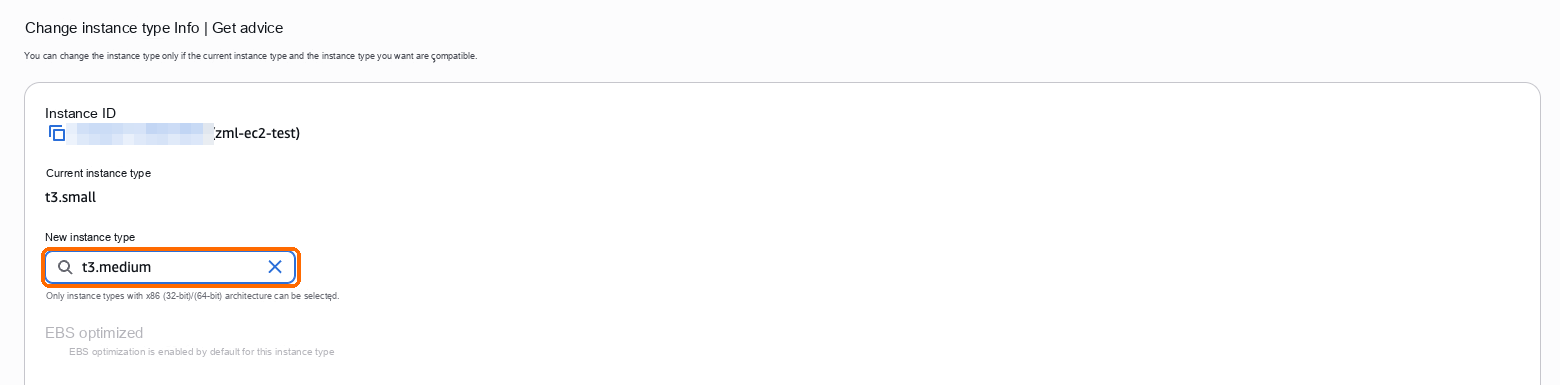
Under New instance type, pick a bigger x86 type (for example t3.medium) and choose Change instance type.
Choose Instance state → Start instance. Trade comes back by itself within a minute or two; with an elastic IP attached the address stays the same and your data is kept, so there's no need to reinstall.