Install Trade on Alibaba Cloud ECS
From buying the server to opening Trade, step by step on Alibaba Cloud ECS, all in your browser.
Follow along: everything happens in your browser, clicking through and copying and pasting one command. No technical skills needed, and the installation itself takes a minute or two.
Before you start
An Alibaba Cloud account, signed in at alibabacloud.com. The screenshots and prices below follow that site, with prices shown in USD.
Cost: the plan that meets the minimum requirements (2 vCPU, 2 GB, economy family) is about 11 USD per month on a monthly subscription, including a 40 GB system disk (2026-10 official price; the order page is final). ZML Trade itself is free.
Traffic: Trade mostly receives market data, and incoming traffic is free. The first 200 GB of outgoing traffic each month is free; beyond that you pay per GB.
Buy a server
Open the Elastic Compute Service (ECS) console, choose Create Instance, then choose Custom Launch at the top.
For Billing Method, choose Subscription. For Region, choose Japan (Tokyo).

Instance: type
ecs.e-c1m1.largeinto the instance type search box and select the row it finds (economy e, 2 vCPU, 2 GB). The price of a little over 8 USD on that row is the machine alone; with the disk, the order page totals about 11 USD. If it isn't found or is sold out, pick an x86 computing type with 2 vCPU and at least 2 GB of memory, and avoid families whose name includes "burstable": they slow down when busy, and market data arrives late.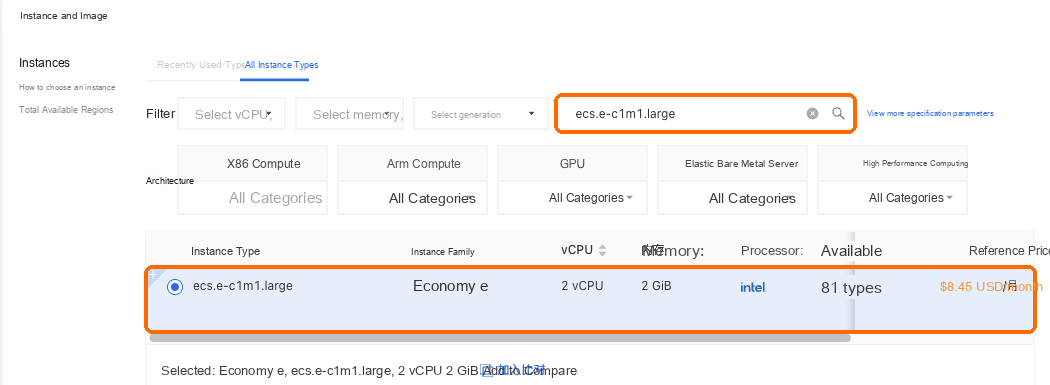
Image: choose Ubuntu, version Ubuntu 24.04, not one marked UEFI.
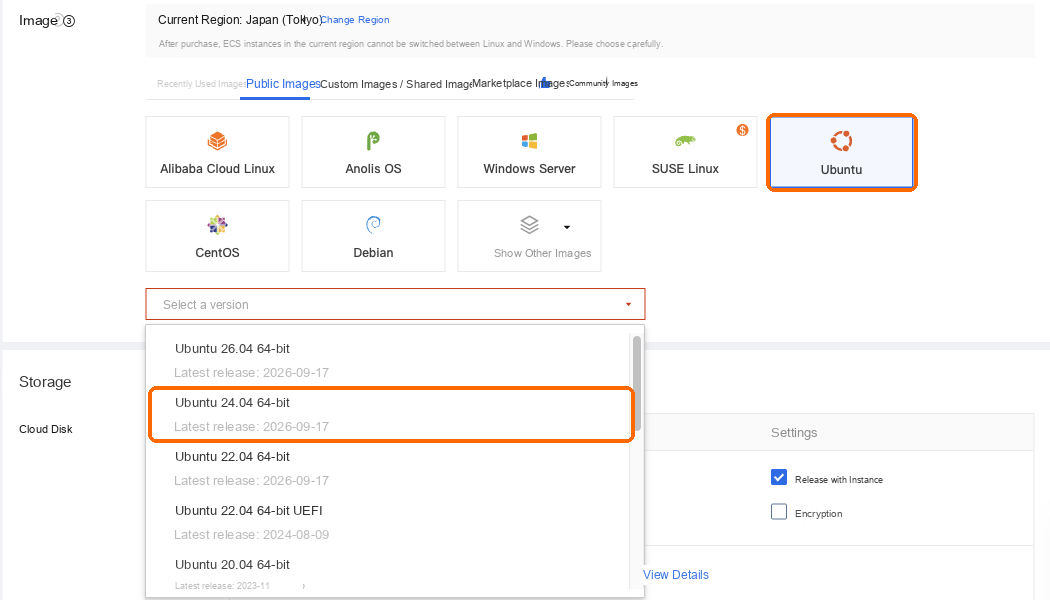
Keep the default 40 GB system disk under Storage.
Network and Security Group:
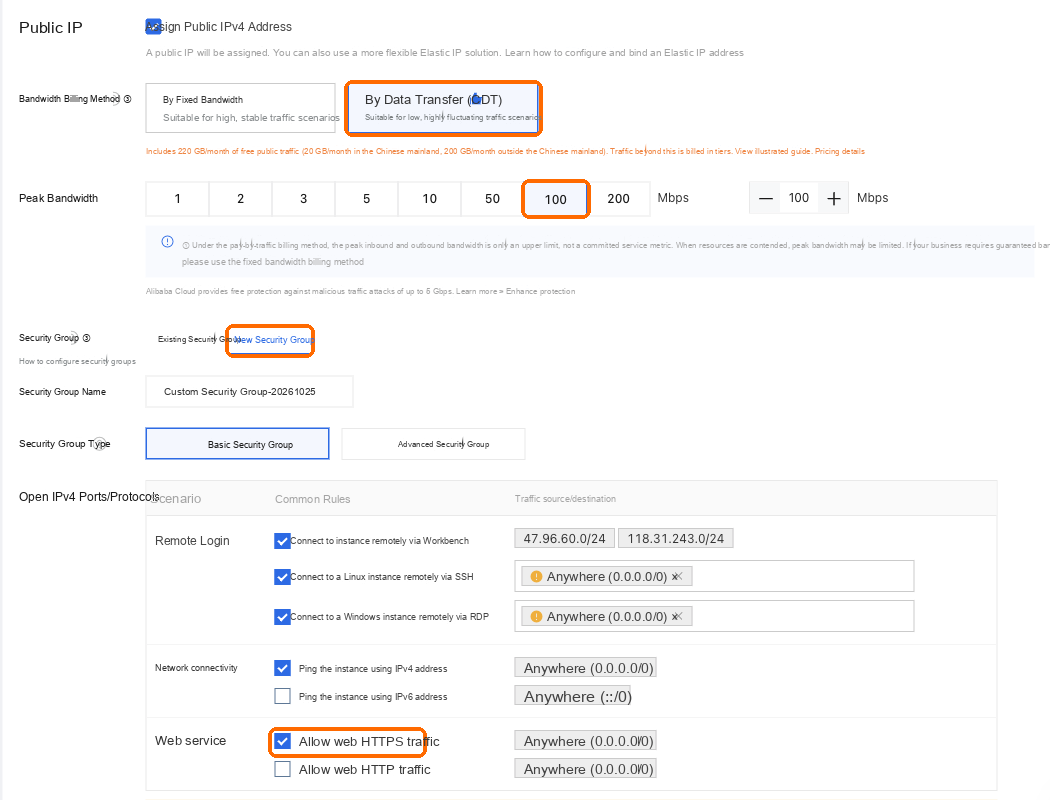
Keep Assign Public IPv4 Address selected.
For bandwidth billing, choose Pay-by-traffic (CDT) and set the peak bandwidth to 100.
For the security group, choose Create Security Group and tick Web HTTPS traffic. Keep the first item, WorkBench remote connection, ticked: the password-free login later uses it. The RDP item is for Windows and can be unticked. Leave the rest as they are and ignore the risk notes beside them.
Management: for the logon credential, choose Set Later. You don't need a password: you'll log in from the browser without one.

On the right, start with a Duration of 1 month and renew if it suits you. Tick Enable Auto-renewal so the server doesn't stop when it expires and interrupt trading. Auto-renewal charges your account balance or linked payment method, so keep enough there. Choose Confirm Order and pay; the server is ready in a minute or two.
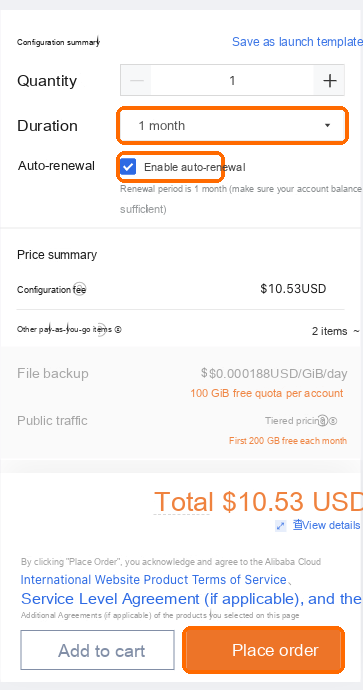
Choose Japan (Tokyo): exchanges may reject API access from servers in other regions. The region can't be changed after purchase.
Log in to the server
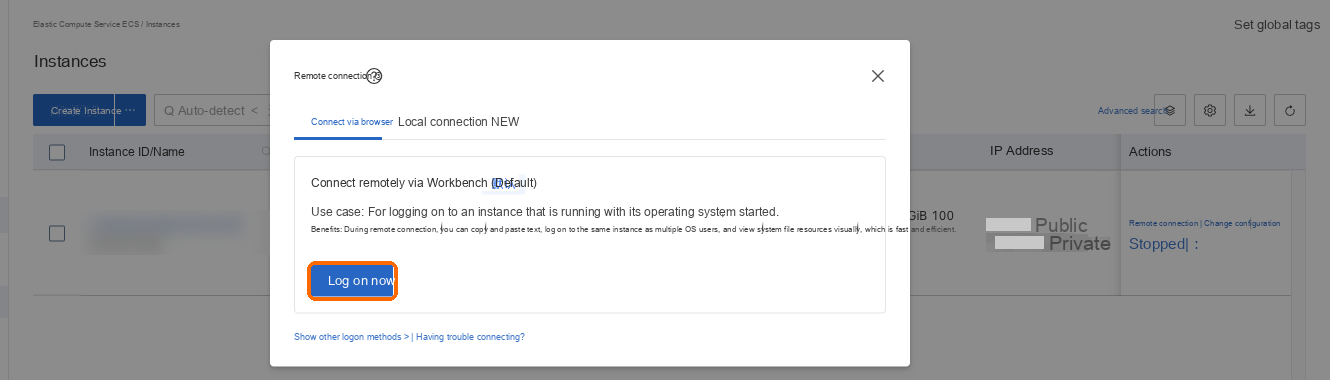
In the ECS console's Instances list, choose Connect on the server's row, then Sign in now.
For the connection method, choose password-free connection, keep the username
root, and choose Log On. A command line window opens in your browser. In the first minute or two after the server is created, it may say the logon failed; wait a minute and choose Log On again.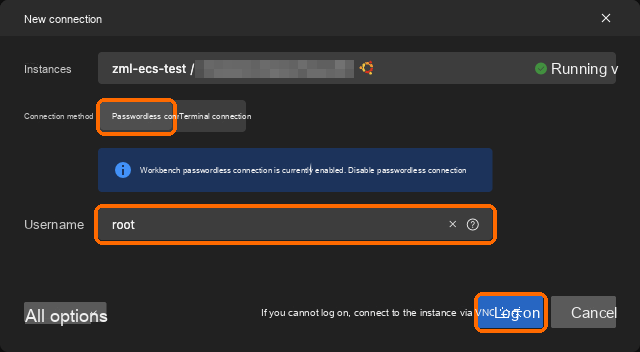
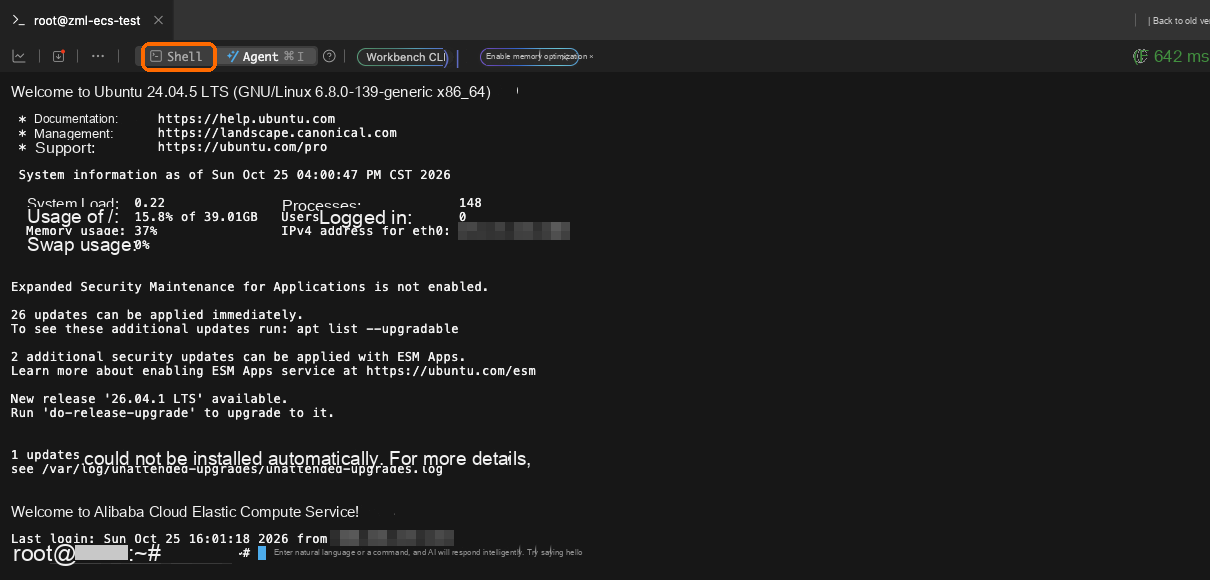
If Agent is selected at the top of the window, choose Shell on its left to switch back to the command line. The block of English text in the window is the system welcome message. Ignore anything about upgrading the system or updating software, and paste the install command below. Ignore the grey hint text after the cursor too.
Run the install command
Copy this command (the Trade install page on our website has a "Copy install command" button):
curl -fsSL --compressed https://api.zmarketlab.com/install.sh -o install.sh && sudo bash install.shRight-click in the command line and choose Paste, or press Ctrl+V (⌘V on Mac), then press Enter. If the browser asks whether the page may read the clipboard, choose Allow.
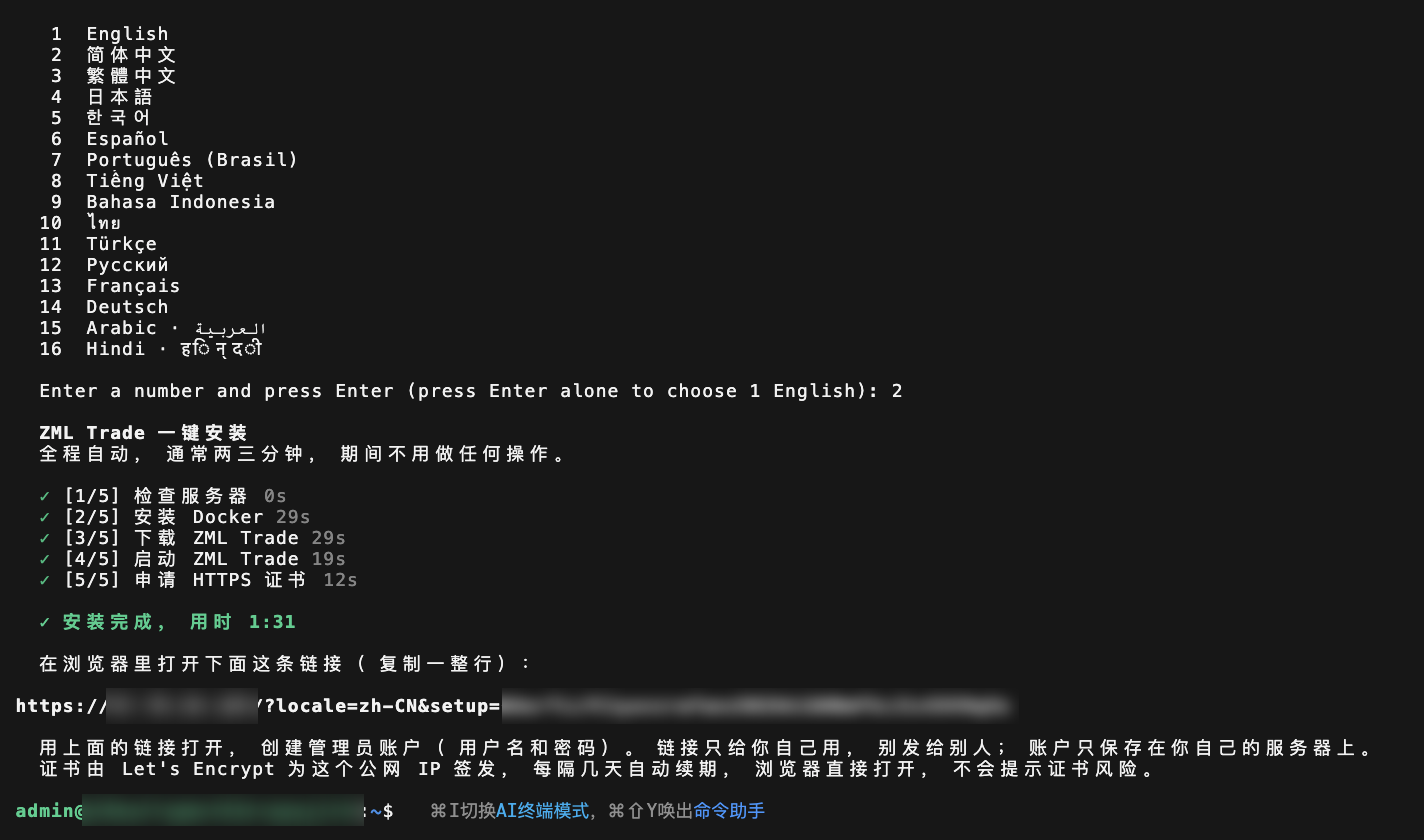
The screen lists 16 languages. Enter the number in front of the one you want and press Enter. The installer and Trade's web pages then use that language.
The rest is automatic and asks nothing more: check the server, install Docker, download ZML Trade, start it, and request an HTTPS certificate. The five steps are checked off one by one. The symbol in front of the current step keeps spinning and its seconds keep counting, so you can tell it is working.
When you see "Installation complete in …", it is installed. It usually takes a minute or two.
If Trade can't be installed (for example, not enough disk space, or another program is using port 443), the installer says why and stops. Fix it as described, then run the same command again; steps already done are skipped.
Open Trade and create the admin account
Below "Installation complete", the screen says "Open the link below in your browser (copy the whole line)", and the next line on its own is your Trade address. Drag with the mouse from
httpsto the end of the address to select it, right-click and choose Copy, then paste it into your browser's address bar. Ctrl+C in the command line doesn't copy. If the address is long and wraps onto two lines, select both lines.The page shows "Set up the administrator account". Enter a username and password, accept the terms, and choose "Create and continue" to enter Trade.
The link carries a one-time code for creating the admin account. Keep it to yourself and don't share it. The account is stored only on your own server, so keep the password safe. If you forget it, run curl -fsSL --compressed https://api.zmarketlab.com/install.sh -o install.sh && sudo bash install.sh --reset-admin on the server to set a new one.
If you've lost the link, open the command line again as in "Log in to the server" above, paste this command and press Enter to print the link again.
curl -fsSL --compressed https://api.zmarketlab.com/install.sh -o install.sh && sudo bash install.sh --setup-linkAfter installation
Connect an exchange: add your exchange API keys. For the key's IP allowlist, enter the egress IP listed in Trade, which is this server's public IP.
Pair with Z Market Lab: opportunities you pick in Z Market Lab can then be handed to this Trade in one click.
Use several public IPs: when you run many combos, add more public IPs to the server; Trade finds them by itself and spreads requests.
Troubleshooting
| What you see | What to do |
|---|---|
| The password-free connection says the logon failed | This happens right after the server is created. Wait a minute and choose Log On again |
| The installer stops and gives a reason | Fix what it says, then run the same command again. For how to handle each message, see Installation failed |
| The browser can't open the link | Make sure the instance's security group has a rule that allows inbound TCP 443. See The browser can’t open Trade |
| The browser says the connection isn't private | Port 443 most likely wasn't open in the security group during installation, so no trusted certificate was issued. After opening it, run curl -fsSL --compressed https://api.zmarketlab.com/install.sh -o install.sh && sudo bash install.sh --enable-ip-cert in the command line to request one again |
Upgrade the server later
To move to a bigger machine when you run more combos:
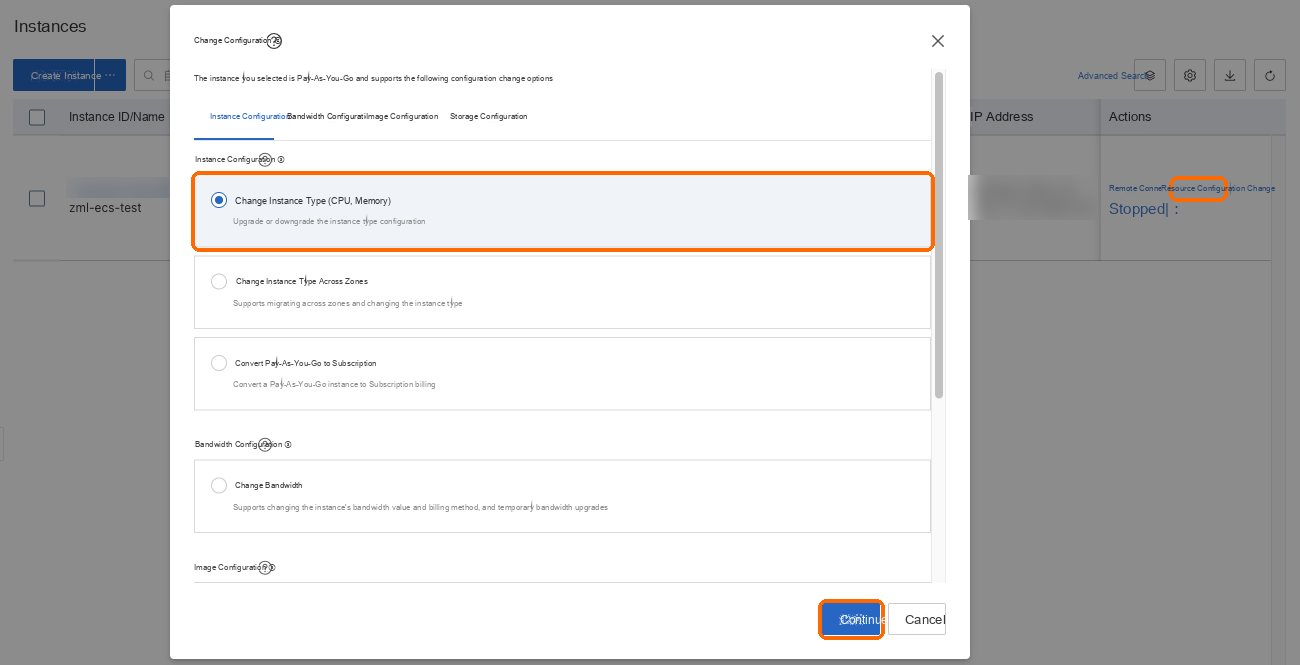
In the Instances list, choose the resource change option on the server's row, select changing the instance type (CPU and memory) in the window that opens, and choose Continue.
Under the target instance type, pick a bigger one (for example
ecs.e-c1m2.large, 2 vCPU and 4 GB) and confirm as the page asks. If it needs to stop the server first, keep the normal stop mode: the economical stop mode may change the public IP.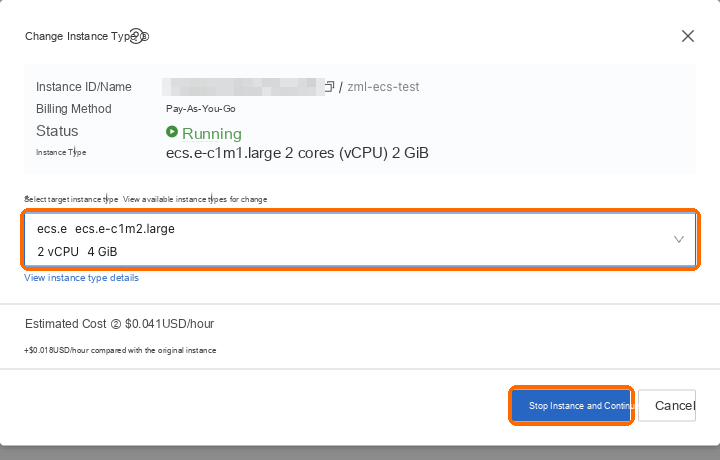
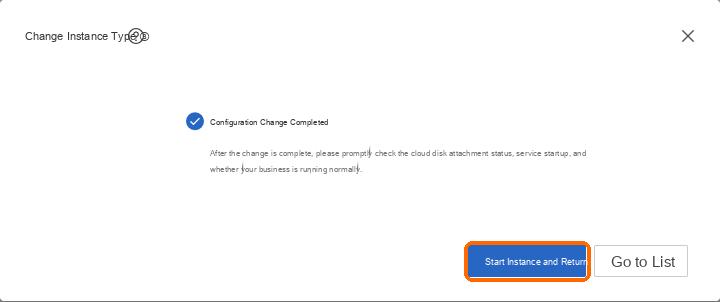
When the change is complete, choose to start the instance and return; if the server isn't running, choose Start in the Instances list. Trade comes back by itself within a minute or two, the public IP stays the same and your data is kept, so there's no need to reinstall.